Lovable Migration ToolKit User Guide
A complete, click-by-click walk through for moving your app off Lovable Cloud and onto your own Supabase project.
Move off Lovable Cloud. Keep Everything Else.
You don't have to recreate a single user, reset a single password, or be at risk of losing your code. Keep Lovable as your editor, just take back the cloud underneath it.
What's Happening On Lovable Cloud
Right now your app runs on Lovable Cloud. Lovable hosts your database, sign-in accounts, and secret keys, all bundled into the same product you use to build. That's convenient, but it's locked you in. You can't see any keys, can't move your data, and when you want out, it's all tangled together into a Gordian knot.
This Lovable Migration Untangles It.
We're going to untangle this mess in 11 easy-to-follow phases. Here we'll walk through how to set up your own Supabase project (the same kind of backend Lovable Cloud is built on, except this one is yours). Then we'll guide you through the phases of moving your Lovable database, users, and secrets over to your own Supabase project.
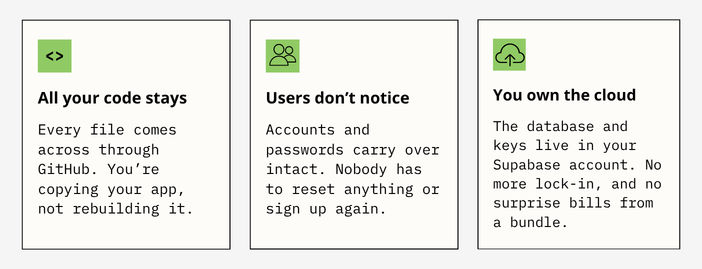
When you're done, the only thing that changes is where your data's housed. You'll still open Lovable and talk to the same agent to edit your app. Nothing changes for anyone who uses it.
BEFORE YOU BEGIN YOUR LOVABLE MIGRATION
You'll move between four places during this migration. It's worth having each one open in its own browser tab (or app) before you start. That way you're not hunting for logins mid-flow.
ACCOUNTS AND TOOLS YOU'LL NEED
A Supabase account (free tier is fine to start) for your new backend.
Your existing Lovable account, where your app lives today.
A GitHub account plus GitHub Desktop installed (this is the application that lets you move files between projects without touching a command line).
Claude Code, a free download from Anthropic that runs in your computer's Terminal using either your Claude subscription or an open-source model. It does the one genuinely technical part, the database-and-users copy.
Our Lovable Migration Toolkit, the folder of files and its README, available for purchase on our Resources page. This toolkit is the piece that pries your hidden keys loose from Lovable.
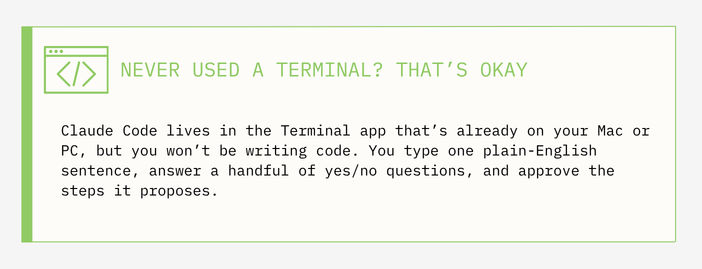
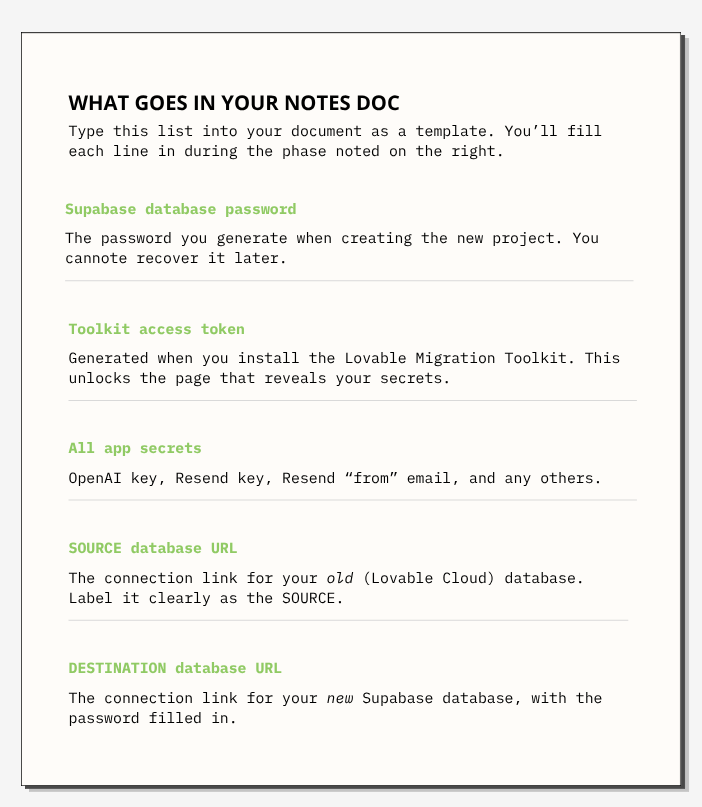
THE MOST IMPORTANT HABIT: KEEP A NOTES DOC for this Lovable migration
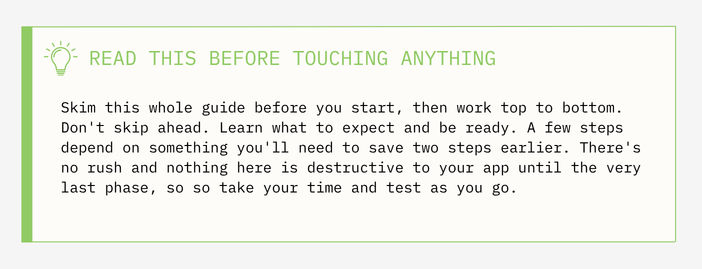
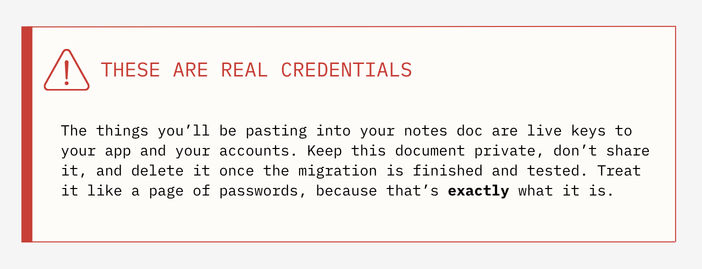
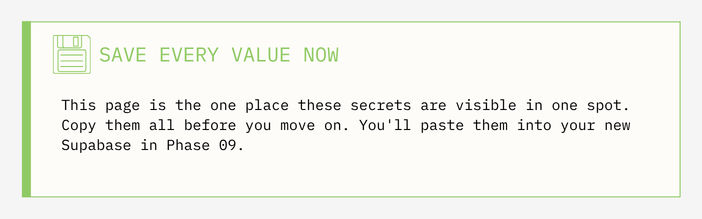
Open a blank document or notes file when you start and keep it open the entire time. Throughout this process you'll be handed passwords, tokens, keys, and connection links that Lovable and Supabase will not show you a second time. The single most common way this migration goes sideways is losing one of these. Paste each one in as you go, and label it clearly.
phase 01 | Create Your New Supabase Project
Outcome: a fresh, empty backend in your own account, ready to receive everything.
This is the new home for your database and users. Right now you're building the empty container; nothing moves into it yet.
Sign in to supabase.com (create an account if you don't have one), then click New project.
Give it a name you'll recognize. Using your app's name is the simplest.
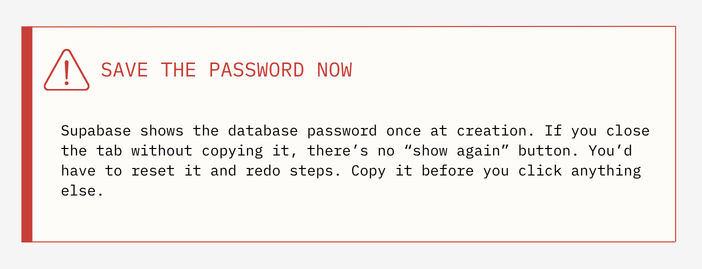
Click Generate a password, then immediately copy it into your notes doc and label it Supabase database password . This is the one you cannot get back later.
Turn on Enable automatic RLS if it's offered. RLS is a security setting that keeps your data locked down by default. You want it on.
Click Create new project. It takes a couple of minutes to spin up. Leave this tab open and move on. You'll set up other pieces while it builds.
phase 02 | Create a Blank Lovable App
Outcome: an empty Lovable project to become your new, Lovable Cloud-free app.
Your current app is wired into Lovable Cloud. Rather than untangle it in place, you'll create a clean, blank app that has no Lovable Cloud connection, and move your code into it. For this phase, keep your original app open in one tab and open a second Lovable tab.
In the new Lovable tab, ask the agent to build a blank starter. A prompt as simple as this is enough: "Create a blank app named [your app name]."
Let it build. When it's done you'll see a basic starter app with no Lovable Cloud attached. That's exactly what you want. Set it aside; you'll come back to it in Phase 04.
phase 03 | Install the Lovable Migration Toolkit
Outcome: unlock the hidden keys and secrets that Lovable normally won't show you.
Here's the core problem this step solves: Lovable Cloud holds secret keys for your app, things like your OpenAI key, but it won't display them to you. The Lovable Migration Toolkit is a small set of files that, once added to your original app, builds a private page where those secrets can be read out. You'll do this on the app you're moving away from, because that's where the hidden secrets live.
Open the Lovable Migration Toolkit's README and find its Install section.
In your original app's Lovable chat, attach every file inside the toolkit's
_lovablefolder. Select them all and drag them into the chat.Copy the install prompt from the README, paste it into the same chat, and send it. Lovable will read the files and start walking through setup.
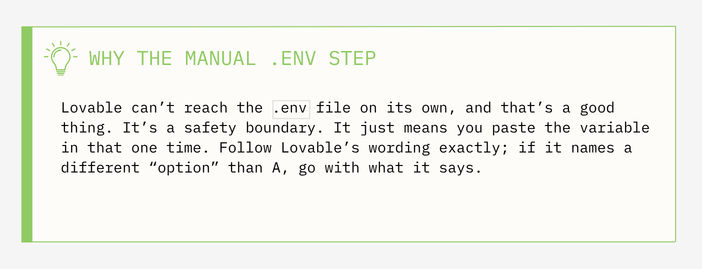
Lovable will say it needs a token and asks to enable an environment variable. It doesn't realize it can't create that variable itself, so you'll add it by hand. Copy the variable it shows you.
In your app's code, open the
.envfile, scroll to the bottom, paste the variables in, wrap the value in quotes so it matches the lines above, and Save.Reply in the chat: "Do option A. I already put this variable in the .env." Lovable then generates your access token.
Copy the token into your notes doc and label it Toolkit access token . Then reply "I've copied it."
Lovable opens a form to add a secret. Paste the same token in there and Save. That locks the secret in place.
Phase 04 | Connect the New App to Supabase and GitHub
Outcome: point your blank app at your new Supabase and wire it to GitHub.
By now your Supabase project from Phase 01 should be finished building. Switch to your blank app from Phase 02.
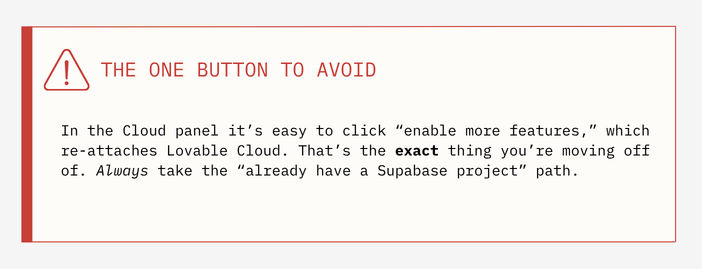
Refresh the blank app's page so it makes a fresh connection. Open its Cloud panel.
Do not click anything that adds new Lovable Cloud features. Instead, look below that for the option that says you already have a Supabase project, and click it.
If your Supabase organization isn't connected yet, use the button to add it, then click Continue.
Find and select the Supabase project you created in Phase 01 and click Connect. Your new app now points at your own database.
Now connect this app to GitHub. In Lovable, use the Connect / GitHub button (if your GitHub account isn't linked yet, this is where you link it). This gives your app a code repository you can copy files into.
Phase 05 | Copy Your App's Code Across
Outcome: move every file from your original app into the new blank app, using GitHub Desktop.
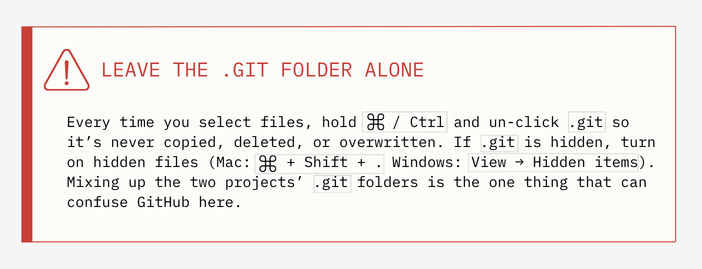
This is a copy-and-paste job between two folders on your computer. The only trick is leaving the hidden folder, .git, behind each time because that folder is what keeps each projects' own history straight.
Getting Your Original App's Files
Open GitHub Desktop and use Clone repository to download your original app's code. Once it's down, click Show in Finder (Mac) or Show in Explorer (Windows) to open the folder.
Push Your Blank App to GitHub, Then Swap Its Files
Back in Lovable, close the Cloud panel on your blank app and push it to GitHub (the Connect / push button). Give it a name you'll recognize as the new one.
In GitHub Desktop, clone this new repo too (you may need to refresh the list first), and open its folder in the Finder/Explorer.
Select everything in the new folder (
⌘Aon Mac /Ctrl+Aon Windows), hold⌘/Ctrland de-select it's.git, then move the rest to Trash. You're clearing out the blank starter files so only the.gitremains. Remember, this keeps the project's history straight!Return to your original app's repo, select everything in that folder, then hold
⌘/Ctrland click the original.gitto de-select it. Copy the rest (⌘C/Ctrl+C).Paste in everything you from your original app [except that
.gitfolder we just de-selected] (⌘V/Ctrl+V). Your original app's files now fill the new app's folder and they're still in your original app too.Return to GitHub Desktop. It will list all the changes. Type a short summary like
migrated filesin the box, then Commit and Push.Back in Lovable, refresh the new app. Your migrated app files are now there! Your code has officially moved. Now the data and users migration comes next!
Phase 06 | Reveal Your Environment Variables & Secrets
Outcome: read out the hidden keys from your original app and save them.
Time to collect the secrets the toolkit unlocked in Phase 03. This happens on your original app, on the private page the toolkit built.
Go to your original app and open its toolkit page, the /opg route. You can reach it from the address bar at the top of the preview (the README tells you the exact address for your app).
It will ask for the Lovable Migration Toolkit access token you saved in Phase 03. Paste it in and unlock. If you see an error on the page, you can ignore it.
Choose Load the environment variables. The page now shows everything that was hidden, typically your OpenAI key, a Lovable API key, your Resend API key, and your Resend "from" email.
Click Reveal values, then Copy all, and paste the whole set into your notes doc under All app secrets. You'll re-enter these into Supabase later.
Phase 07 | Get Both Database Connection Strings
Outcome: collect the two links the Lovable Migration Tool needs to migrate your original app's database.
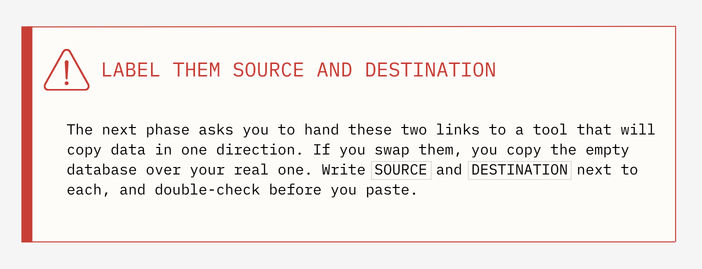
A connection string is just a long web-style link that lets a tool open a database directly. You need two of them: one for the database you're moving from, and one for the database you're moving to. Label them clearly. Mixing these up will cause headaches.
The source (old) Database Link
On the Lovable Migration Toolkit page (from Phase 06), scroll to the bottom and copy the database connection URL shown there.
Paste it into your notes doc and label it clearly as SOURCE database URL (your old / Lovable Cloud database).
The Destination (New) Database Link
Go to your new Supabase project and click Connect. Choose the Direct connection string.
You'll see a URL with a placeholder where the password should be, something like [YOUR-PASSWORD]. Copy the whole URL into your notes doc and label it DESTINATION database URL.
Replace [YOUR-PASSWORD] (delete the square brackets too) with the Supabase database password you saved back in Phase 01. Now the link is complete!
Phase 08 | Migrate the Database and Users with Claude Code
Outcome: copy all your data and your users with IDs and passwords intact into the new database.
This is the one step that needs a real tool rather than clicking around a dashboard. You can't easily dump one Supabase database into another. The data has to be exported in pieces and imported in the right order, especially the user accounts. Claude Code does exactly this, walking through the pieces for you and asking before each move.
Install Claude Code if you haven't (it's a free download from Anthropic; you'll need a Claude account). Open your Terminal app and type
claudeto start it.Give Claude Code this opening request: "I have a source and a destination Supabase database, and the source includes users that need to be migrated as well. I will provide the URLs. Please help with the migration."
It will confirm the plan and ask you a few questions. Here are the answers that keep everything intact:

When it asks for the two links, give it your
SOURCEandDESTINATIONdatabase URLs from Phase 07.Let it work. It will check both databases, export the data in pieces, import them into the new one, and then verify that everything - especially your users - landed correctly. You'll need to approve a few actions along the way, and that's normal. Just keep an eye on it and help it proceed.
Confirm the Copy Worked
Open your new Supabase project, go to the Table editor, and confirm your rows are there. Then open Authentication and check that a user appears. The user's ID should match the one in your old project exactly. Matching IDs is the proof that no one will have to reset a password.
Phase 09 | Deploy Edge Functions & Add Your Secrets
Outcome: get your app's behind-the-scenes functions running on the new backend, with their keys.
Edge functions are the little bits of server code that do work your app can't do in the browser: sending an email, calling OpenAI, etc. They came across with your code in Phase 05, but they need to be switched on in your new backend and given their secret keys. Do this from your new app in Lovable.
Refresh your new app's page so it picks up the freshly migrated database.
In the Lovable chat, ask it to deploy your functions and tell you what keys they need: "We have migrated all of our data to this new database that we connected. Please deploy our edge functions and tell me where to put the secrets."
Lovable deploys the functions and lists the secrets it needs, such as OPENAI_API_KEY, RESEND_API_KEY, and RESEND_FROM_EMAIL. These match the values you saved in Phase 06.
Open your new app's Cloud panel and scroll to the bottom to Manage secrets.
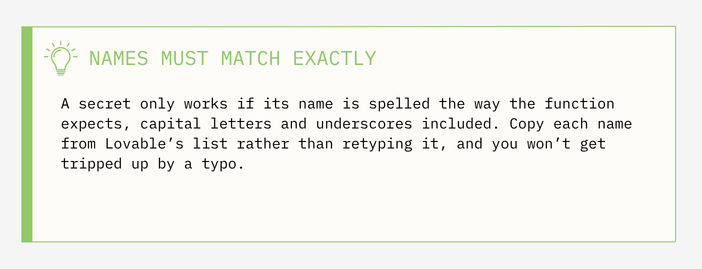
Add them one at a time: type the secret's name exactly as listed, paste its value from your notes doc, and repeat for each. Then Save them all.
Refresh your app once more. It's now running fully on your Supabase, no longer on Lovable Cloud at all.
Phase 10 | Test Everything
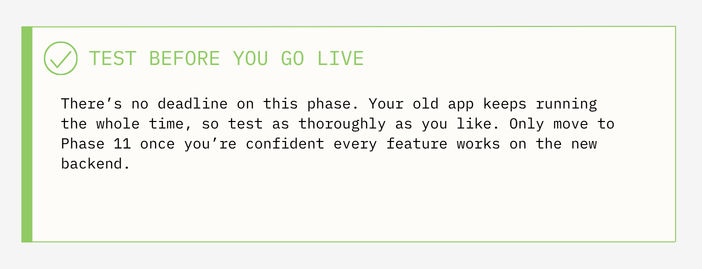
Outcome: prove each feature works on the new backend before you switch the app over.
Nothing about your live app has changed. The original is still published and untouched. Take your time here and click through your new app as a real user would. The aim is to see data flowing into your Supabase and that the features behave as normal.
Submit something. Fill out a form or perform an action in your app, then open your Supabase Table editor and refresh. Your new entry should appear.
Log in as an existing user. Sign in with an account that existed before the migration, using the same password as always. It should work. That's your proof the user migration held.
Exercise the smart features. If your app does anything with AI or email (an edge function), trigger it and confirm the result. For example, a generated draft appears, and the matching record shows up in Supabase.
Work through every feature this way. Anything that misbehaves almost always traces back to a missing or misnamed secret from Phase 09. Check there first.
Phase 11 | Clean Up And Go Live
Outcome: remove the temporary toolkit, then switch your audience over to the new app.
There are only two things left: close the temporary door the toolkit opened, and point the world at your new app. Handle the cleanup first; it's a small security matter.
Remove the Lovable Migration Toolkit
The toolkit added that private /opg page and an access token to your original app. Now that you've pulled your secrets out, you don't want that page sitting around. It's a hole you should close.
Go back to the Lovable Migration Toolkit's README and scroll to the bottom for it's teardown (removal) prompt.
Paste that prompt into the Lovable chat of the app where you installed the toolkit. It strips out the
/opgroute and related pieces so there are no leftover security holes.Delete the toolkit secret, remove the token line you added to the
.envfile, then save. Lovable can't touch the.envitself, so this last bit you have to do manually.Confirm it's gone. Visit the
/opgaddress to make sure it now shows nothing.
Switch Over and Move Your Domain
When your testing is done, unpublish your old app so there aren't two live copies.
Publish your new app.
Move your custom domain over to the new app. Once it points there, your users land on the new, Lovable Cloud-free version automatically. Since the accounts came across intact, users never notice a thing.
The Lovable Migration Checklist
Copy and paste or print it off. Tick each item as you complete it.
Setup
❑ Accounts, browser tabs, software ready: Supabase, Lovable, GitHut + GitHub Desktop, Claude Code
❑ Lovable Migration Toolkit downloaded, README open
❑ Blank notes doc open, ready for keys
Phase 01 - 03 | New Home & Toolkit
❑ New Supabase project created; database password saved
❑ Automatic RLS enabled
❑ Blank Lovable app created (no Lovable Cloud)
❑ Lovable Migration Toolkit files added to original app; install prompt sent
❑ Variable pasted into .env; token saved to notes
Phase 04 - 05 | Connect and Copy Code
❑ New app connected to your Supabase (not new Lovable Cloud)
❑ New app connected to GitHub
❑ Original app files copied (excluding .git)
❑ New repo files replaced & pushed; migrated files visible in Lovable
Phase 06 - 07 | Secrets & Database Links
❑ All secrets revealed on /opg and saved to notes
❑ SOURCE database URL saved & labelled
❑ DESTINATION database URL saved, password filled in
Phase 08 - 10 | Migrate, Wire Up, & Test
❑ Claude Code migration run; users preserved
❑ Verified: data in Table editor, user ID matches in Auth
❑ Edge functions deployed on new app
❑ All secrets re-entered in new Supabase
❑ Every feature tested: submit, login, AI/email all work
Phase 11 | Clean Up & Go Live
❑ Toolkit removed; /opg gone; token line removed from .env
❑ Old app unpublished, new app published, domain moved
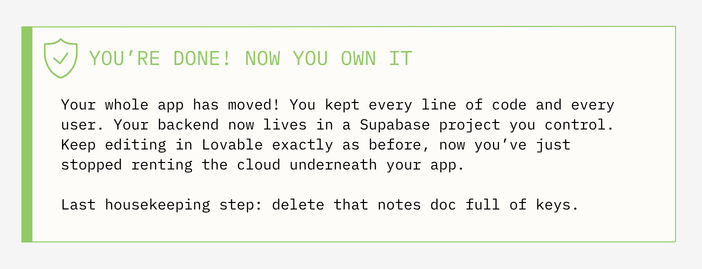
❑ Notes doc with keys deleted
Follow An Actual Migration Demo
Watch our full YouTube video walk through here:
Go To Our YouTube TutorialTROUBLESHOOTING the Lovable Migration
GLOSSARY
Lovable Cloud
The all-in-one backend that Lovable run for you: database, user sign-ins, and secret keys bundled into the product. Convenient, but you don't control it or see inside it. This is what you're moving off.
Supabase
A backend service you run in your own account. It's the same kind of thing Lovable Cloud is built on. After this migration, it holds your database, users, and secrets, and you own it.
Database
Where your app's information lives; the rows and tables of everything users create and save.
Auth (authentication)
The system that handles user accounts and sign-ins. Migrating it carefully is what lets people keep their existing passwords.
Secret / API key
A private password that lets your app use an outside service. For example, an OpenAI key for AI features or a Resend key for email. It's kept hidden so nobody else can use them on your bill.
Environment Variable (.env)
A setting stored outside your main code, usually in a file called .env. It's where sensitive values live so they aren't written directly into the app.
Connection string / URL
A long link that lets a tool open a database directly. Here you're using two: one for your old database (SOURCE) and one for your new one (DESTINATION).
RLS (Row Level Security)
A Supabase safety feature that keeps your data private by default, so users can only reach what they're allowed to. You turn it on when creating the project.
Edge function
A small piece of server-side code that does jobs your app can't safely do in the browser, like sending an email or calling an AI. These need to be deployed and given their secret keys on the new backend.
The /opg page
The private page the Lovable Migration Toolkit adds to your original app so you can read out the hidden secrets. You remove it during the cleanup phase so it doesn't stay open and leak sensitive data.
Repository (repo) & GitHub
A repository is the folder of your app's code, stored on GitHub. GitHub Desktop is the user-friendly app that moves those files to and from your computer without a command line.
Claude Code
Anthropic's tool that runs in your computer's Terminal. Here it does the one tricky job: copying your database and users from the old backend to the new one, in the right order.
Start Your Lovable Migration Now
Opichi does Lovable Cloud migrations without losing your users or your code. Questions on any steps? Reach out, we're glad to help.
Book a Call